
LinkedIn Sales Navigator: The Complete Guide to Finding & Engaging Buyers

If you feel like you're prospecting in the dark, you're not alone. So many sales pros have access to LinkedIn Sales Navigator but barely scratch the surface of what it can do. Standard LinkedIn is fantastic for keeping up with your network, but for serious B2B sales? It's like trying to fish with your bare hands. Sales Navigator is the high-tech rod and reel that turns a guessing game into a precision-guided mission.
Introduction
Ever wonder how top performers seem to always be talking to the right people at the right time? Here’s a hint: it’s not luck. Sales professionals who master LinkedIn in Sales Navigator reportedly generate up to 50% more qualified leads.
The problem is, regular LinkedIn just wasn't built for serious B2B prospecting. The search is limited, the insights are basic, and you’re constantly mixing your personal brand with your sales hustle. It’s noisy and inefficient.
This is where Sales Navigator comes in. It’s a dedicated platform that unlocks a suite of advanced tools designed to help you find your ideal buyers, understand their needs through powerful buyer signals, and engage them in a meaningful way.
Ready to see how it all works? In this guide, we’ll walk through everything you need to know:
- -Setting up your workspace for peak efficiency
- -Mastering the core features to find hidden-gem leads
- -Implementing proven strategies for outreach that gets replies
- -Integrating with your CRM to build a seamless workflow
Let’s turn LinkedIn into your most predictable source of pipeline. 🚀
What Is LinkedIn Sales Navigator?
So, what exactly is Sales Navigator? Think of it as a premium overlay for the entire LinkedIn network, built exclusively for sales professionals. It gives you a separate, focused interface with powerful tools to search, filter, and organize prospects without cluttering your personal LinkedIn feed.
It’s fundamentally different from regular LinkedIn because it’s not about social networking; it's about sales intelligence. It provides deeper insights into accounts, helps you map out decision-making committees, and alerts you to timely buying signals.
Who is it for?
This tool is a game-changer for anyone in a B2B sales role:
- -Sales Development Reps (SDRs) & Business Development Reps (BDRs): For building highly targeted lead lists.
- -Account Executives (AEs): For account mapping and finding key decision-makers within target companies.
- -Sales Managers: For monitoring team activity and identifying market trends.
- -Founders & Entrepreneurs: For making those crucial first sales and building a foundational client base.
The Cost vs. Value Proposition
Let's be real—it's not free. But the return on investment (ROI) often comes fastest for those who rely on high-value, long-term relationships. If closing just one or two extra deals a year pays for the subscription, the value proposition becomes a no-brainer. The time saved from manual, unfocused prospecting alone is often worth the price.
Getting Started: Setup & Navigation
First things first, let's get you set up for success. If you're new to LinkedIn Sales Navigator, signing up is simple, and there’s usually a free trial so you can kick the tires before committing.
Once you’re in, you’ll land on the main dashboard. Think of this as your new mission control for all things prospecting.
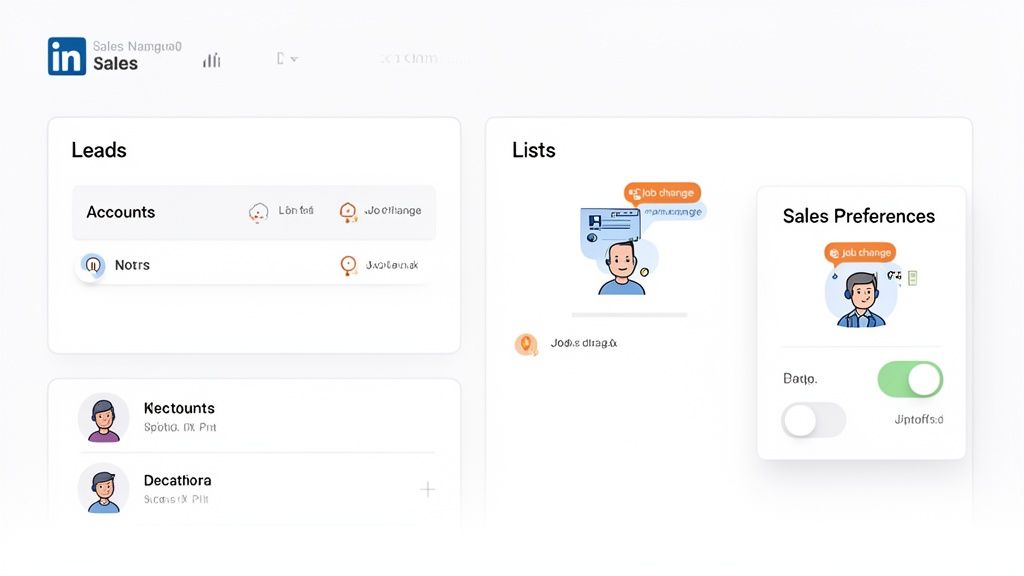
Step 1: Navigate the Dashboard
Take a moment to get your bearings. You'll see four key areas:
- -Leads: These are the individual people you want to talk to.
- -Accounts: These are the companies you’re targeting.
- -Lists: This is where you organize your leads and accounts.
- -CRM: Where you can manage your integration settings (we'll get to that!).
Step 2: Customize Your Workspace (The Step Everyone Skips!)
Before you dive into searching, there’s one critical step: setting your Sales Preferences. This is where you tell the platform exactly who you're looking for—your target industries, ideal company size, specific regions, and seniority levels.
Why does this matter? Because getting this right from the start helps LinkedIn's algorithm begin surfacing relevant prospects and accounts for you automatically. It's a small time investment that pays huge dividends.
Actionable Step: Go to your settings and configure your alerts for job changes, company news, and mentions in the news. These are absolute gold for finding timely, relevant reasons to reach out.
Finding the Right Leads in Sales Navigator
This is where your investment in LinkedIn Sales Navigator really starts to shine. The basic filters on regular LinkedIn are fine, but Sales Navigator unlocks a whole new level of targeting with its claim of over 50 advanced search filters.
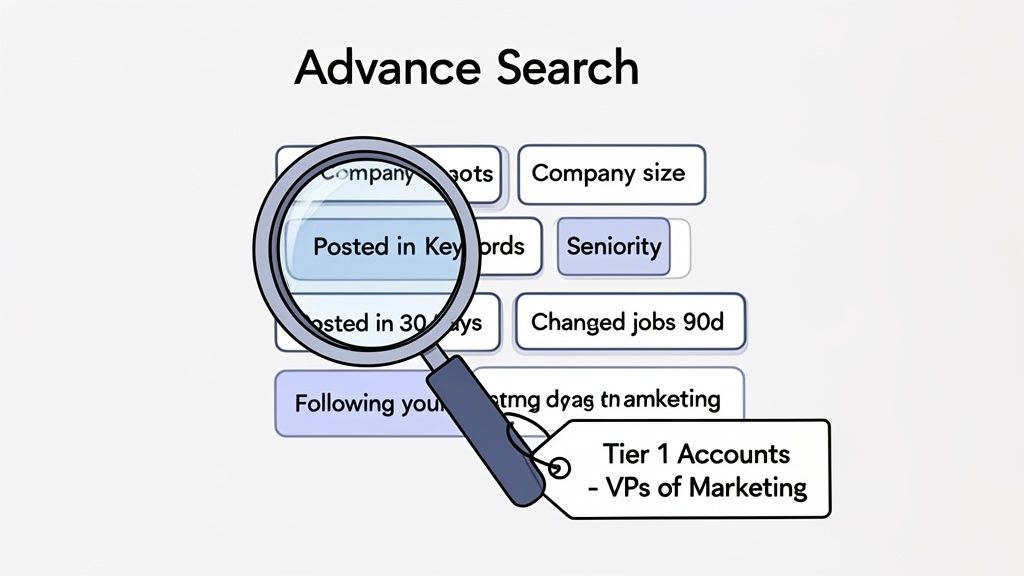
You can finally stop guessing and start pinpointing prospects with incredible precision. Think about filtering by:
- -Industry: "Computer Software" or "Financial Services"
- -Company Size: "51-200 employees"
- -Role & Seniority: "VP of Marketing"
- -Location: "Greater New York City Area"
But here’s the real secret weapon: digging into buyer intent signals. These are the digital breadcrumbs that tell you a prospect is actively looking or open to a conversation. We cover this topic extensively in our guide on how to spot high-intent leads.
Filters like these are pure gold for finding warm leads:
- -"Posted on LinkedIn in 30 days": Shows they are active and engaged.
- -"Changed jobs in the last 90 days": A new role often means a new budget.
- -"Following your company": They already know who you are. This is as warm as it gets.
Saving Leads to Lists & Training the Algorithm
As you uncover ideal prospects, don't just move on. Save them to organized lists. For example, create a list called 'Tier 1 Accounts - VPs of Marketing'. This does more than just keep you organized—it actually trains the algorithm. The "Lead Recommendations" feature learns from who you save and starts suggesting more people just like them.
Understanding Accounts in Sales Navigator
Modern B2B selling is rarely about a single lead; it’s about the entire account. Sales Navigator is built for this account-based selling (ABS) approach.
Instead of just chasing individual titles, you can map out entire companies. Who are the key decision-makers? Who are the influencers? Who’s the budget holder? Sales Navigator helps you answer these questions.
How to Find and Track Target Accounts
- Use Account Search: Use filters like company size, industry, and annual revenue to build a list of target companies.
- Save to an Account List: Create lists like "Enterprise SaaS Targets" or "SMB FinTech Prospects."
- View the Account Map: Once saved, you can see recommended leads within that company, view its organizational structure, and identify decision-makers.
- Set Up Alerts: Get notified about significant company updates, such as funding announcements, leadership changes, or high growth.
Account IQ is an AI-powered feature that provides a quick snapshot of an account's growth trends and department headcount, giving you valuable context before you even start your outreach.
Lead Scoring & Prioritization
A list of 1,000 potential leads is useless if you don't know who to contact first. How do you prioritize effectively?
Inside Sales Navigator, you can build a “priority queue” for your day without ever leaving the platform. Look for a combination of these key indicators:
- -Seniority: Are they a decision-maker or an influencer?
- -Activity: Have they posted on LinkedIn recently? This shows they’re active.
- -Buyer Signals: Have they changed jobs, been mentioned in the news, or followed your company?
- -Mutual Connections: A warm intro is always the best path forward.
Your Daily Workflow
- Check Your Alerts: Start your day by reviewing alerts for job changes and company news. These are your hottest leads.
- Segment Your Lead Lists: Create dynamic lists based on priority. Examples: "Hot Leads - Recent Job Changers," "Tier 2 - Following Company," "Long-term Nurture."
- Focus on 10-20 Prospects: Choose a manageable number of high-priority leads to focus on each day. Quality over quantity, always.
Ready to build your first priority list?
Outreach Strategies in Sales Navigator
So you’ve found the perfect leads. Great. Now comes the hard part: starting a conversation that doesn't immediately get deleted. How do you cut through the noise? 🤖
The secret is personalization at scale. It's about using the intel you've gathered to write a message that feels like it was written just for them.
A Simple, Effective Multi-Touch Sequence
Many users report success with a simple, respectful cadence:
- -Example: "Hi Sarah, I saw your post on the future of AI in marketing and found your perspective fascinating. Would love to connect and follow your work."
- -Example: "Great to connect, Sarah. Since you're interested in AI marketing, thought you might find this report on chatbot conversion rates useful. Curious to hear your take."
- -Example: "By the way, my company helps VPs of Marketing like you implement AI to boost lead gen. If that's a priority, I'd be happy to share a few ideas."
A word on InMail: Save your limited monthly InMails for top-tier prospects who are outside your network and have "Open Profile" enabled. For everyone else, the connection-first approach usually yields better results.
Need more inspiration? Check out our guide to writing effective DMs.
CRM Integration & Workflow
Sales Navigator cannot operate in a silo. Think of it this way: your CRM is your system of record, and Sales Nav is your best scout in the field. Integrating them is non-negotiable for a modern sales team.
Connecting Sales Navigator to your CRM, whether it’s Salesforce or HubSpot, bridges the gap between prospecting and relationship management. It automatically syncs leads, accounts, and activities.
This completely wipes out the soul-crushing task of manual data entry. All your outreach activity—messages, notes, connection requests—can be logged in your CRM, creating a single source of truth.
Key Supported Integrations
Sales Navigator offers native integrations with major CRM platforms, including Salesforce and Microsoft Dynamics 365, with more available through partner ecosystems.
The workflow automation possibilities are huge:
- -Handoff Rules: Automatically assign a lead in your CRM once it's saved in Sales Navigator.
- -Tagging: Tag leads in Sales Nav to trigger specific follow-up sequences in your CRM.
- -Task Creation: Log an InMail, and have a follow-up task automatically created for next week.
If you're still figuring out which system is right for you, we have a guide that breaks down the best CRMs for your needs. But don’t stop there. Imagine pairing Sales Navigator with a buyer intent tool like GojiberryAI. You can create a seamless workflow: an intent tool flags a company, you use Sales Navigator to find the right contact, and all activity syncs back to your CRM. It’s a powerful machine for generating pipeline.
Advanced Features You Should Know
Once you've mastered the basics, it's time to explore the tools that give you an unfair advantage.
- -Sales Assistant: This AI-powered feature lives on your dashboard and surfaces timely recommendations and alerts, like key job changes or accounts engaging with your company’s content. Think of it as your proactive prospecting assistant.
- -Account IQ & Lead IQ: These features give you quick, digestible intelligence. Use them to understand a company’s growth trajectory or a lead’s recent activity before you reach out. It’s the perfect ammo for personalization.
- -Saved Searches: This is semi-automation at its best. Set up a detailed search for your ideal customer profile and save it. Sales Navigator will then automatically find new people who match that criteria and alert you. It’s like having a BDR working for you 24/7.
- -InMail: As mentioned, use these strategically. They are best for high-value, hard-to-reach prospects. Reports suggest that shorter, highly personalized InMails that ask a question perform significantly better than long, pitch-heavy messages.
Sales Navigator vs Regular LinkedIn
So, when should you use each platform? Here’s a quick breakdown:
| Column 1 | Column 2 | Column 3 |
|---|---|---|
| Row 1 | Row 1 | Row 1 |
| Row 2 | Row 2 | Row 2 |
FeatureRegular LinkedInLinkedIn Sales NavigatorPrimary GoalNetworking & Brand BuildingProspecting & Sales IntelligenceSearch FiltersBasic (title, company, etc.)50+ Advanced (seniority, company size, intent)Lead OrganizationNone (manual tracking)Lead & Account Lists, Tags, NotesMessagingStandard DMs & Connection RequestsInMail Credits, Enhanced MessagingInsightsProfile views, basic company infoBuyer intent signals, account maps, growth trendsWorkflowStandaloneCRM Integration, Saved Searches, Alerts
How to combine them: Use regular LinkedIn to build your personal brand by posting valuable content and engaging with your industry. Use Sales Navigator for the surgical, behind-the-scenes work of finding and engaging prospects. The two work together beautifully.
Strategies for Maximum Results
Having the tool is one thing; having a strategy is another. Here are five proven playbooks:
- Account-Based Prospecting (ABM): Identify 10-20 dream accounts. Use Sales Navigator to map out the entire buying committee (e.g., the VP, the Director, and the end-user Manager). Engage all of them with tailored messaging.
- Vertical Prospecting: Focus on one industry at a time (e.g., "SaaS companies in Texas"). This allows you to become an expert in their specific pain points and use relevant case studies and language.
- Role-Based Targeting: Create saved searches for your key personas (e.g., "Head of People," "Chief Financial Officer"). Tailor your outreach to address the unique challenges of that specific role.
- Intent-Based Prospecting: Build a daily workflow around buyer signals. Create a list specifically for "Leads who changed jobs in the last 90 days" and reach out with a congratulatory message.
- Warm Outreach: Use the "Mutual Connections" filter to find prospects you have a shared connection with. Ask for a warm introduction—it’s the most powerful way to start a conversation.
Common Mistakes to Avoid
Sales Navigator is an incredible engine, but it's not foolproof. Watch out for these common traps:
- -Over-relying on Automation: Using third-party bots to spam connection requests is a quick way to get your account restricted.
- -Poor Targeting (Spray-and-Pray): A list of 25 highly-qualified prospects is infinitely more valuable than a list of 2,500 random ones.
- -Generic Messaging: If your message could be sent to 100 people without changing a word, it’s not good enough.
- -Ignoring Account Insights: Don’t just look for leads. Look at company growth trends and recent news for valuable context.
- -Inconsistent Follow-Up: Finding a lead is only the first step. Have a clear follow-up plan.
- -Skipping CRM Integration: This creates data silos and massive manual work. Connect it from day one.
Measuring Success: Key Metrics
How do you know if it's working? Track these key performance indicators (KPIs):
- -Leads Added Per Week: Are you consistently building your pipeline?
- -Response Rate: What percentage of your messages get a reply? (Track by channel: connection note vs. InMail).
- -Conversion Rate (Lead → Meeting): How many conversations are turning into qualified appointments?
- -Time Saved: How much faster are you building lists compared to manual prospecting?
- -ROI: Can you attribute new pipeline and closed deals back to your Sales Navigator efforts?
Sales Navigator Tips & Tricks
- -Use Boolean Search: Combine keywords with AND, OR, NOT for hyper-specific searches (e.g., "VP of Sales" NOT "Assistant").
- -Leverage TeamLink: If you're on a team plan, see which prospects your colleagues are already connected to for easy warm intros.
- -View "Similar" Leads: When you find a perfect prospect, click the "..." and select "View similar." It's a great way to find more people just like them.
- -Stay Compliant: Always follow LinkedIn's Terms of Service. Avoid aggressive automation and focus on genuine, human-to-human interaction.
Troubleshooting Common Issues
- -Filters Not Behaving: Sometimes, filters can conflict. Try removing them one by one to see which one is causing the issue. A broad keyword can often override a more specific filter.
- -CRM Sync Issues: Most sync problems are due to authentication. Try disconnecting and reconnecting your CRM in the Sales Navigator settings. Check field mapping to ensure data is flowing correctly.
- -InMail Constraints: Remember, InMail credits are limited and don't always roll over. Use them wisely on your most valuable prospects.
- -Account Visibility Limits: If you're running into commercial use limits, it’s a strong sign you should be using Sales Navigator instead of regular LinkedIn for prospecting.
You now have the complete playbook for turning LinkedIn Sales Navigator from a passive directory into a proactive pipeline-generating machine. The key is to move from theory to action.
Your 7-day implementation plan is simple:
- Day 1: Set up your Sales Preferences.
- Day 2-3: Build and save 3-5 core lead and account lists.
- Day 4-5: Practice the multi-touch outreach sequence on 10 new prospects.
- Day 6: Integrate your CRM.
- Day 7: Review your first week's metrics and refine your lists.
Ready to stop guessing and start targeting with precision? You can start a free trial of Sales Navigator on their website. And to make it even more powerful, consider a tool like GojiberryAI, which complements Sales Navigator by identifying high-intent leads for you, so you can focus your outreach on buyers who are already looking for a solution. Start generating pipeline on autopilot today.
Frequently Asked Questions
What's the real difference between Sales Navigator and LinkedIn Premium?
Think of it this way: LinkedIn Premium is for individual power users who want to build their personal brand and network more effectively. Sales Navigator is a dedicated B2B sales platform for teams and professionals whose job is to actively find, track, and engage potential customers. The advanced search filters, lead/account organization, and CRM integration in Sales Navigator are built specifically for sales workflows and don't exist in Premium.
What does the phrase "LinkedIn in Sales Navigator" mean for users?
This popular search phrase gets at a core concept: Sales Navigator is not a separate database. It’s a powerful interface that sits on top of the entire LinkedIn network. When you use "LinkedIn in Sales Navigator," you are leveraging LinkedIn's vast, real-time data through a lens designed for sales. It helps you find the right people within the network and highlights your existing connections to make warm outreach easier.
Can I fully automate my outreach with Sales Navigator?
No. Sales Navigator itself does not automate the sending of messages or connection requests. LinkedIn’s terms of service are very strict about banning third-party bots that do this. The platform is designed to make your manual outreach incredibly efficient and targeted, not to replace it with a robot. However, you can "semi-automate" your prospecting by using Saved Searches and alerts, which deliver fresh, qualified leads to your dashboard every day.

More High-Intent Leads = Your New Growth Engine.
Start Now and Get New High Intent Leads Delivered Straight to Slack or Your Inbox.